Help Desk user verification configuration
Configure the Help Desk page to verify user identity before providing account assistance. This prevents unauthorized users from gaining access through social engineering.
How verification works
When an employee contacts the Help Desk for assistance, you send a verification request using their enrolled MFA method. For SMS or email, you send a code they repeat back to you. For Mobile Authenticate OTP, you ask them to provide the code from their app. For push notifications, they approve the request in their Authenticate app. After verification succeeds, you can safely assist with their request.
Prerequisites
SecureAuth® Identity Platform release 24.04 or later
Data store with write privileges
Configured user authentication policy
Configure Account Management (Help Desk) page
In this section, you'll configure the Account Management (Help Desk) page to enable the user verification feature.
If you do not have an Account Management (Help Desk) page set up, see Account Management (Help Desk) page configuration.
Otherwise, to quickly get to this configuration, do the following:
In the Internal Application Manager, edit the Account Management (Help Desk) page.
Scroll to the bottom and click the Go to Advanced Settings to finish the configuration for this application link.
In the Identity Management section, click Configure help desk page.
On the Help Desk page, scroll down to the bottom and set User Verification to Show.
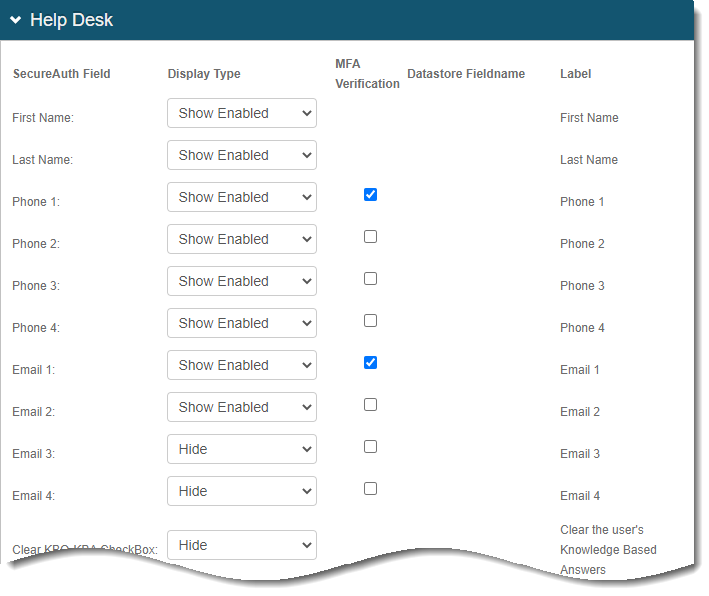
Top of page
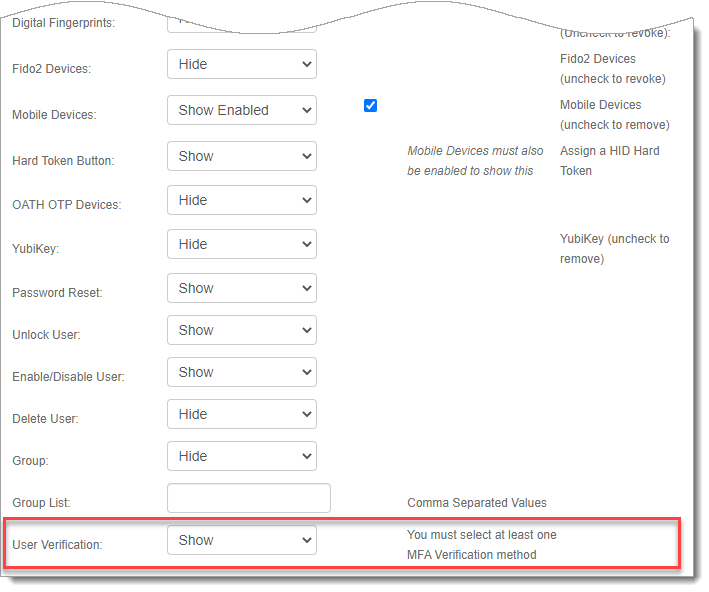
Bottom of page
Configure the remaining Help Desk page settings as needed.
<SecureAuth Field>
For each field, choose how it appears on the Help Desk page:
Hide – Do not show the field.
Show Enabled – Show the field and allow the help desk agent to edit it.
Show Disabled – Show the field as read-only.
Password Reset
Optional. Set to Show to let help desk agents reset user passwords.
Unlock User
Optional. Set to Show to let help desk agents unlock user accounts.
Requires Lock user account after exceeding attempts to be enabled in Multi-Factor Methods tab > Multi-Factor Throttling.
Enable / Disable User
Optional. Set to Show to let help desk agents enable or disable user accounts.
Delete User
Optional. Set to Show to let help desk agents delete user accounts.
Password Throttling
Set to Show Enabled to allow help desk agents to clear password throttling for locked-out users. Requires Password throttling to be configured.
MFA Throttling
Set to Show Enabled to allow help desk agents to clear MFA throttling for locked-out users. Requires MFA throttling to be configured. (Available in SecureAuth IdP 26.0.0)
OTP Validation
Set to Show Enabled to allow help desk agents to verify end user identity using codes from the SecureAuth Authenticate app. (Available in SecureAuth IdP 26.0.0)
Available only in Help Desk pages using the SA IdP theme. See Help Desk user verification process.
In the MFA Verification column, select the check boxes for verification methods you want available. For example, select Phone 1 to enable SMS verification.
Top of page
Bottom of page
Each method only appears to the help desk agent if the end user has enrolled it. Available verification methods:
Phone – Send an SMS code or login request to the end user's phone.
Email – Send a code or login request to the end user's email.
Mobile Devices – Ask the end user to read a code from the SecureAuth Authenticate app.
OATH OTP – Send a push notification for the end user to approve in the SecureAuth Authenticate app. (Available in SecureAuth IdP 26.0.0)
OTP Validation – Send a code to the end user's SecureAuth Authenticate app. The end user reads the code back to the agent for verification. (Available in SecureAuth IdP 26.0.0)
Save your changes.